
Key Highlights
- You can use elevation data in a GIS to get clean contour lines. Start with a DEM file to begin your workflow.
- Topographic maps show how the land rises and falls. They do this by using contour intervals.
- A person can use free sources like SRTM and other digital elevation data to make contour mapping easy.
- QGIS is a good GIS tool for extraction, styling, and exporting your contour lines.
- When you get better source data, you usually get better contour lines. Lidar makes these lines even more clear.
- When you pick the right contour interval, your map stays readable and helpful.
Introduction
Need to turn raw elevation data into something people can read fast? Contour lines on a map help with this. These topographic contour lines change regular elevation data into a map that shows the shape and slope of the land in your area of interest. You will also see patterns of landforms. No matter if you use a simple global dataset or something local and more detailed, the reason is the same. You want to make lines that show the ground in a way everyone can see clearly. The next parts talk about what these contour lines mean and how to make them.
What Are Topographic Contour Lines and Why Are They Important?
Topographic contour lines connect points that are at the same elevation. On topographic maps, these lines turn terrain elevation data into an easy pattern to read. If the lines are close together, slopes are steep. If they are spread apart, the land is flat. This is how contour intervals show a change in elevation.
These lines are important because seeing just raw elevation data is hard for most people to read. A clear contour map makes it easy to spot the shape of the land. You can compare heights too. This helps you not make drawing errors that could mix up the map. If you want to use contour lines the right way, you need to know how the lines work. You also should know where these lines can help with planning.
How Contour Lines Reflect Elevation Changes on Maps
Think about contour lines being like a simple sketch of elevation data. A contour line shows one set height above sea level. If you set the contour intervals to 10 meters, then each contour line means there is a 10-meter difference in elevation from one line to the next. This helps you see how the ground goes up or down over the land.
On many maps, you will see index contour lines spaced out more than other lines. These index contours are marked with numbers. This helps make reading the map easier. The heavy lines show clear points for you to check, so you do not have to count every small line to find the elevation. Index contour lines help you read maps faster. They also help you make fewer mistakes with contour lines and elevation.
In practice, the pattern on the contour map shares the main story. When the lines are close together, it shows a steep area. When the lines are farther apart, it means the ground is more gentle. If you see closed loops, these often show either hills or dips. This depends on the labeling and the area you are looking at. Once you get how these things fit together, reading a contour map gets a lot easier.
Applications of Topographic Contour Lines in Mapping and Planning
Contour lines help you turn the shape of land into a clear map you can use to plan. When you pick your area of interest first, you only have to look at the surface you need. You do not have to look at the whole place. This way, you save time. It also helps keep your topographic maps simple and easy to read. With a good use of contour lines, your planning becomes better.
They also help in places where land and water meet. Many elevation products are changed so that water bodies look flat and the coastline is clear. Contours can show a cleaner view around lakes, rivers, and coastlines when the source data is good.
Common planning uses include:
- Looking at slope patterns in the area of interest
- Showing how land forms on topographic maps
- Seeing how water bodies and coastline connect with the land around them
- Helping with early planning before doing more detailed study
To begin, you mostly need elevation data for the area you want to make a map of.
Essential Data and Tools Needed to Generate Contour Lines
A digital elevation model sits at the heart of making a contour map. A DEM file is a raster surface. It has elevation values set up at regular spaces across the map. This digital elevation data helps your software. The software uses these numbers to make contour lines on its own.
The source you choose is important. SRTM is easy to get and is good if you want a lot of coverage. Lidar products can show more detail in some areas. After you get the raster, you need software to open it. The software must run contour extraction, then let you export it. The next two parts talk about rasters and how you do contour extraction.
Digital Elevation Models (DEM): The Foundation for Contour Mapping
A digital elevation model shows the bare ground surface. It does not include trees, buildings, or other objects on the land. This makes it a good base to use for making contour lines. If you want to get topo lines for elevation and contour, you need to start with this dataset.
For a wide area, people often use an SRTM DEM to start. The Shuttle Radar Topography Mission collected land elevation across much of the world. NASA and other groups helped with this. USGS EROS shares SRTM DEM data, like the 1 arc-second global cover. Some areas may still have missing spaces, and this depends on where you look.
In the United States, there are newer DEMs that use lidar and other sources with high detail. This makes it better for showing more about the ground and how high it is. If you want your project to use better elevation data, choosing a DEM made with lidar usually gives you a better result than using rough worldwide elevation data.
Free and Popular Software Options for Creating Contour Maps
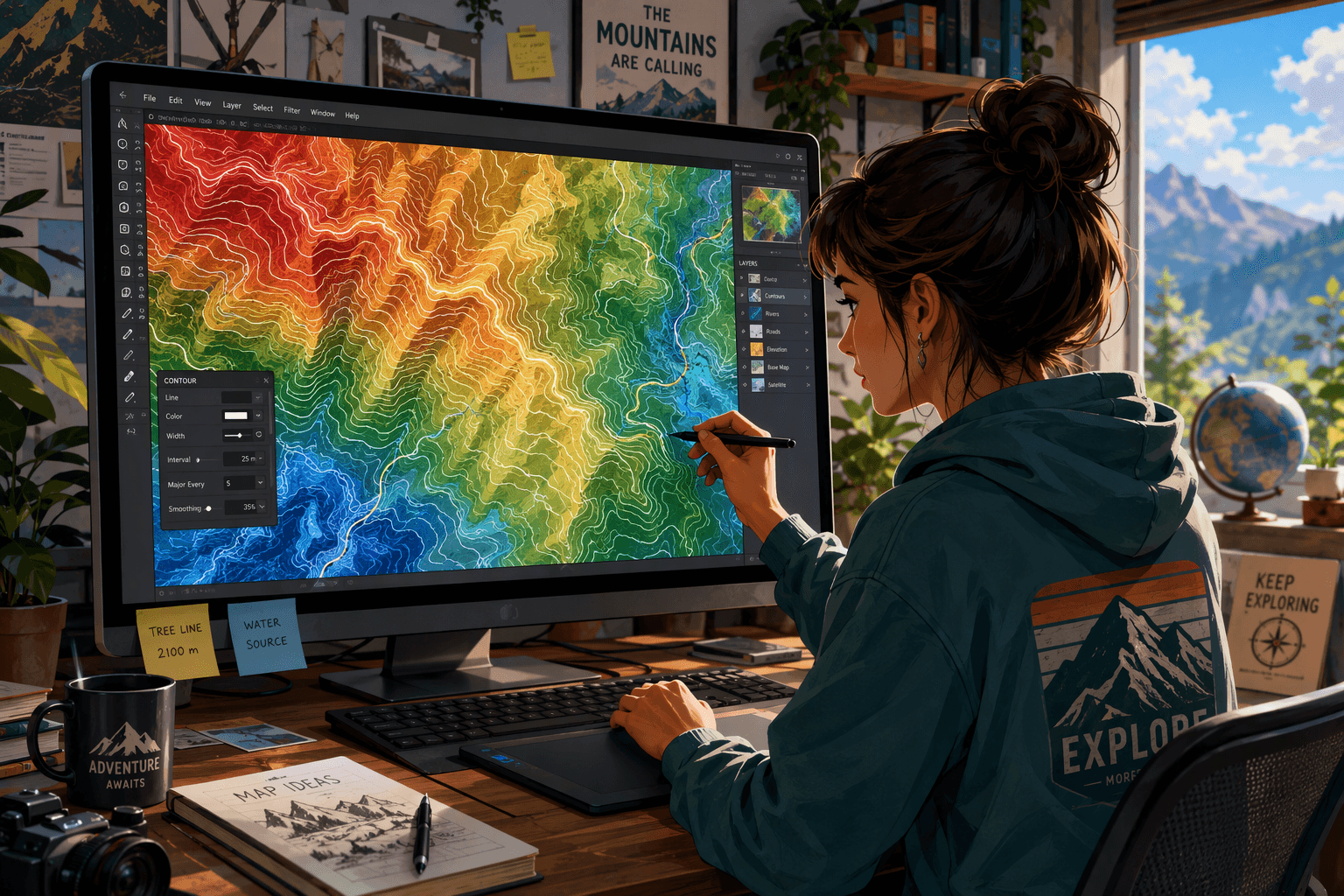
If you are looking for a free way to work with elevation data, QGIS is one of the best GIS tools for doing contour extraction. You can read different types of raster files, like GeoTIFF, in this program. It also helps you make, style, and send out contour layers. For a lot of people, this is all you need to have a good workflow with elevation and contour extraction in QGIS.
To get source files, you can use EarthExplorer or AppEEARS. Both places let you search and download elevation products. EarthExplorer lets you download SRTM data and other types of digital elevation data. AppEEARS gives you ASTER elevation products. If you want secure websites, go to a gov website or a portal from an official government organization. This is important when you use HTTPS to download files or access your account.
Tool or platform | Best use |
|---|---|
QGIS | Free GIS app for contour extraction from a DEM |
EarthExplorer | Search, preview, and download SRTM data and other elevation products |
AppEEARS | Download ASTER global elevation products |
Google Earth with imported layers | Quick viewing, not a full contour-generation workflow |
These choices help lay out the steps you will follow next.
Step-by-Step Guide: Creating Topographic Contour Lines from Elevation Data
A simple workflow is easy to follow. Start by picking your area first. Then get the elevation data for that place. Next, load the digital elevation model into your GIS software.
After that, use the extraction tool for contours. Be sure to set the contour intervals so they fit your elevation, contour, and your map’s use. This makes your basic topo lines.
After you generate the output, take time to look over it. Check the water edges, odd spikes, and gaps that can show up because of source limits. Make sure the style looks clean and the labeling is done last. The two sections below talk about how to pick intervals and how to avoid things that can make the map look bad.
Selecting the Right Interval Between Contour Lines
The best interval for your map depends on the kind of land you have and what you want to do. A small interval lets you see more detail, but the map can get crowded and be hard to read. A bigger interval makes the map clear, but you might not see small hills or dips. There is not a default setting that will be right for every DEM file.
Start by checking the elevation data range for your project. If there is not much change in the land shape, using large contour intervals could hide some of the features. But if the elevation goes up and down a lot, small spacing between contour lines can make the map hard to read. Set your parameters to fit both the elevation of the land and the final size of your map.
A practical way to decide is to:
- Check both the lowest and highest values in the DEM file.
- Try out two or three contour intervals before you choose one.
- Do not just use the default parameters. Always check the output first.
Good contour intervals help people read the map quickly. With the right contour intervals, it is easy to see the shape and height of the land at once. A map with clear contour intervals gives a good view of the area. The contour lines on the map show you where the land goes up or down. This helps you understand the place better even the first time you look at the map.
Common Mistakes to Avoid When Generating Contour Lines
Many contour problems start with the source raster. If the elevation surface has empty spots, bumps, or water parts that are not done well, the lines will show these problems. This means that poor input often makes confusing results, no matter what contour algorithm you use.
Another problem that people face is picking the wrong contour intervals. If you set contour intervals too close together, the map gets busy and it is hard to read. If the interval is too wide, you might miss small changes in the land. You need to look at the extraction settings and make sure that they fit with the raster resolution. A rough raster will not give you detail, so the contour lines cannot show what is not there in the data.
Try to avoid these errors:
- Using low-quality elevation data without checking it first
- Accepting contour intervals that are not right for the terrain
- Ignoring marks and lines made by the algorithm or changes in interpolation settings
Taking a few minutes to check your work now can help you avoid spending hours fixing things later.
Conclusion
To sum up, turning elevation data into topographic contour lines is a useful skill. It helps us see land shapes and how different places connect. If you use the right tools and follow simple steps, you can make contour maps that work well for mapping and planning projects. Make sure you pick the best contour intervals. Try not to make common mistakes with elevation or contour lines because that will make your maps better. If you want to learn more, or if you need help, feel free to ask someone or look for resources. Have fun with mapping!
Frequently Asked Questions
Where can I quickly create contour maps online for free?
A quick and free way is to download SRTM data from secure websites. You can use a gov website like EarthExplorer. After download, you can work with the data in QGIS. Online portals help you search for and download SRTM data. But, making a full contour is often easier by using desktop software after you get the data.
What’s the best approach for beginners learning contour mapping?
For someone new to this, the best thing to do is start easy. First, download one DEM tile. Next, open it in a free app like QGIS. You can use this app to test some basic parameters for making a contour.
You should also follow detailed instructions that you get from the official data providers. It helps to start with a small area. You can compare your results by using different intervals.
Can I generate accurate contour lines without expensive GIS software?
Yes, you can use free GIS software like QGIS to get contours after you download elevation data in the form of a DEM from an official source. The accuracy will not be about how much the software costs. It mostly depends on the quality of the elevation data that you download. A good DEM will usually give better results than just using an expensive tool for contour extraction.